
Product listings
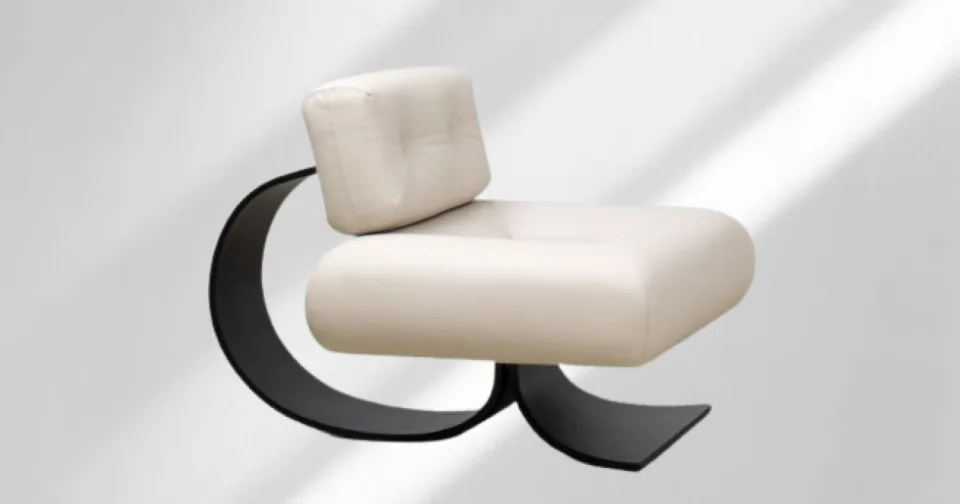
Create a clean product cutout for an e-commerce listing, catalog, comparison graphic, or ad. Place it on white or a brand color, then inspect labels and small parts before publishing.
The page could not load. Please refresh to try again.
This is taking longer than expected. You can keep waiting or refresh the page.
AI IMAGE BACKGROUND REMOVER
Turn a portrait, product photo, pet picture, or creative image into a transparent cutout. Open Background Remover in MagicCanvas Create, upload your image, and inspect the edges before downloading.
Remove an image background →Opens Image Background Remover in Create. Review the current processing cost before submitting.
 ORIGINALTRANSPARENT
ONE SUBJECT, A CLEANER START
Background Remover detects the main subject and separates it from the surrounding scene. The transparent cutout is ready for another design, a different background, or a cleaner layout.
 ORIGINALTRANSPARENT
 ORIGINALTRANSPARENT
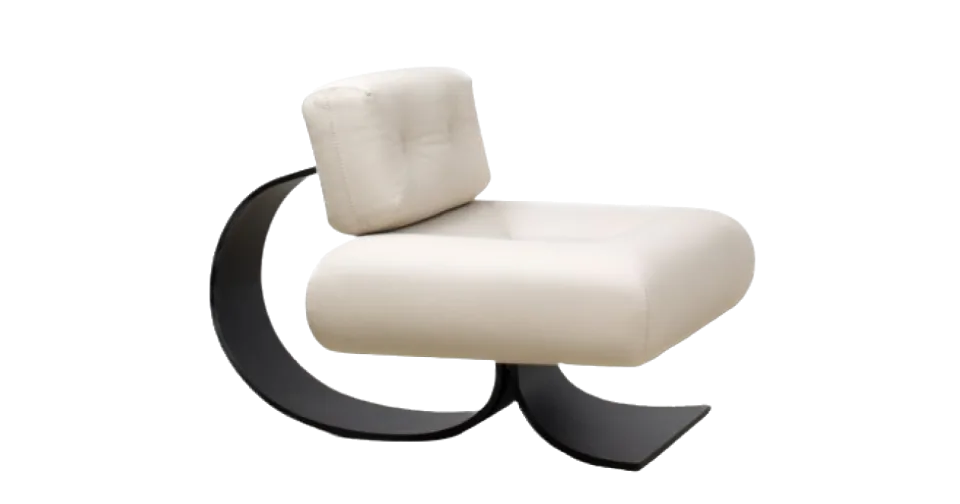
These are paired source and transparent output assets from the existing MagicCanvas background-removal page.
HOW IT WORKS
Start with the best source you have, then check the cutout instead of assuming every edge is perfect.
Select the button on this page. Create opens on the Image tab with Background Remover selected.
Use a clear image with one recognizable subject. A contrasting background usually makes the outline easier to separate.
Review the displayed cost, then submit the task. No text prompt or manual outline is required for the initial cutout.
Zoom in on hair, fur, fingers, glass, shadows, and thin edges. Download the result only after checking the transparent areas.
A clean cutout becomes a flexible building block for commerce, profiles, social content, and design work.
Create a clean product cutout for an e-commerce listing, catalog, comparison graphic, or ad. Place it on white or a brand color, then inspect labels and small parts before publishing.
Separate a person from a busy setting, then use the cutout in a professional headshot, profile design, thumbnail, presentation, or social post. Pay close attention to hair and accessories.
Keep the animal while removing furniture, grass, or another distracting scene. Fur and whiskers are fine details, so review the result at full size.
Prepare a reusable subject for banners, logos, decks, campaign graphics, and composite images without manually tracing the entire outline.
BETTER INPUT, CLEANER CUTOUT
Automatic separation works best when the subject is clear and the boundary is visible.
This page removes backgrounds from still images. Choose the video workflow for moving footage, or continue editing the finished cutout.
It separates the main subject from the surrounding image and creates a cutout with a transparent background. You can then place that cutout in a new design, product layout, profile image, or presentation.
Select Remove an image background on this page. MagicCanvas opens Create on the Image Background Remover tab, where you can upload your source and review the current processing cost.
The image workflow is designed to produce a cutout with transparency. Check the downloaded result in an app that displays transparency as a checkerboard, because some image viewers show transparent areas as black or white.
The background remover detects and separates the subject automatically. You should still inspect hair, fur, glass, shadows, and other fine edges before using the result.
Use a clear, well-lit image with a recognizable subject and visible edges. Separation is more difficult when the subject and background have similar colors, or when blur, smoke, reflections, or overlapping objects hide the outline.
Yes. Product cutouts can be useful for catalog layouts, storefront graphics, marketplaces, and ads. Place the transparent result on white or a brand color in a compatible editor, then check reflective surfaces, translucent packaging, small text, and thin product parts.
First remove the original background to create a transparent cutout. Then place the cutout over a white layer in a compatible image or design editor. Keep the transparent version too, so you can reuse the subject on other colors or scenes.
This page is for still images. Use Video Background Remover for footage containing a person, then review the full clip because edges can change as the subject moves.
Review the displayed cost in Create before submitting. Pricing and access can depend on your account and the current tool configuration.
READY FOR A CLEAN CUTOUT?
Upload your image in Create and review the transparent result.
Remove an image background →